
Full page in one click
Press Capture and the extension scrolls the tab, takes every frame and stitches them into one seamless image. No manual scrolling, no gluing parts together.
Capture an entire web page, from header to footer, as one image or PDF. The extension scrolls, captures every frame and stitches them for you.
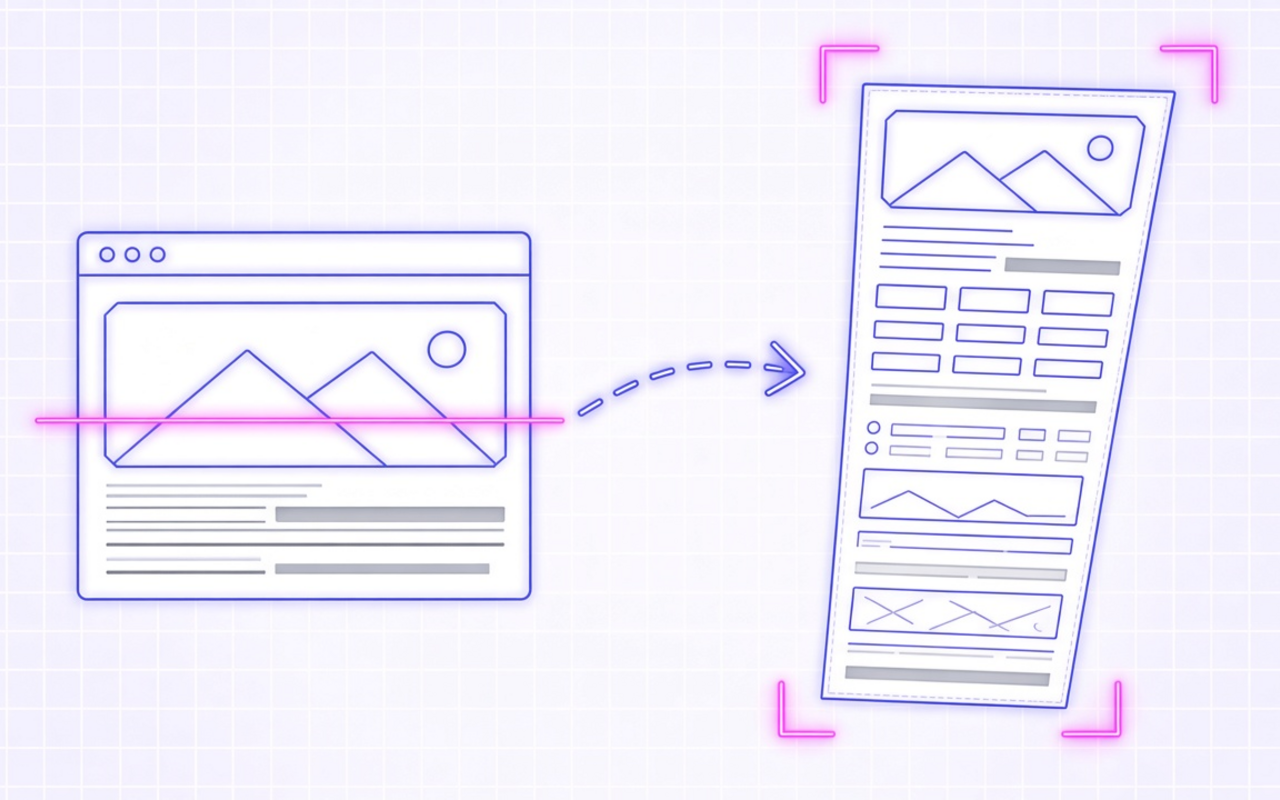
One click, whole page
Press Capture and the extension scrolls the tab, takes every frame and stitches them into one seamless image. No manual scrolling, no gluing parts together.
Full page for the whole document, Visible area for exactly what is on screen, and Select area to drag a frame around one part of the page.
PNG keeps text crisp. JPG and WebP have a quality slider for lighter files. PDF comes in A4, Letter or a fit-to-content page size.
Chats, tables and feeds often scroll inside their own box. When the page itself does not scroll, the extension captures that inner panel instead.
In Auto mode a fixed header or cookie banner appears once at the top instead of repeating in every tile. You can also hide them or keep them as they are.
Pick what happens after each capture. Copy pastes straight into a chat or document; very large images are shrunk automatically so they paste reliably.
Alt+Shift+S captures without opening the popup. File names are built from date, time, site and page title, so captures sort neatly in your downloads.
Frames are stitched locally in the browser and saved to your own folder. Screenshots are never uploaded, and there is no account to create.
Simple by design
A focused Chrome extension that turns long web pages into one tidy image or PDF. Everything runs locally in your browser.
Chrome Web Store
“I review long landing pages every week. One file per page instead of twelve cropped pieces saves me real time.”
“Our chat tool scrolls inside a panel, and it still came out as one clean image for the ticket.”
“Saving sources as PDF with the date in the file name keeps my research folder tidy.”
“The sticky header shows up once instead of in every slice. That alone made bug reports readable.”
“Alt+Shift+S and the page is in my downloads with the site and date already in the name.”
Three quick steps
Add it from the Chrome Web Store, then click the puzzle icon and pin it so the icon stays on the toolbar.
Open any website, click the icon, pick Full page, Visible area or Select area, and press Capture.
Watch the progress bar, then save the file, copy it to the clipboard or open it in the built-in viewer.
Answers before you install
Open the page, click the extension icon, choose Full page and press Capture. The extension scrolls to the bottom, captures each frame and stitches them into one file. You can also press Alt+Shift+S.
It is one image of content that is taller than your screen. The tool scrolls the page step by step, captures each screenful and joins them without seams, so you get the whole article or chat in a single file.
Yes. With Scroll panels inside the page turned on (the default), the extension finds the inner scrolling panel when the page itself does not scroll and captures that panel from top to bottom.
PNG, JPG, WebP and PDF. JPG and WebP have a quality slider from 50 to 100. PDF supports A4, Letter and a Fit page size that keeps the on-screen proportions.
A capture stops at 60,000 pixels of page height. Very tall results are split into several files automatically, so no part of the captured page is cut off.
No. Capturing and stitching happen inside your browser, and files are saved to your Downloads folder or a folder you pick. Only anonymous usage counts and error reports are sent, never page content.
Chrome blocks extensions on its own internal pages, on other extension pages and on the Chrome Web Store. Local files need the Allow access to file URLs switch in the extension details.
Yes. It runs wherever desktop Chrome runs: Windows, macOS, Linux and ChromeOS. Chrome on phones does not support extensions.